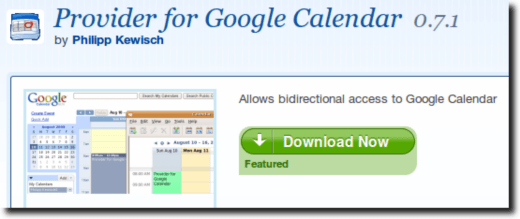
The first thing you’ll need to do is head to the Download Assistant page at the Google Webstore, where you can download and install the extension.

Showing posts with label Google Chrome. Show all posts
Opt-Out of Personalized Ads in Chrome
Google Ads seem to know everything about you: your age, the items for which you are searching, that you like a certain sports team or musical group, your medical problems. This can feel very creepy, even for those of us who understand exactly how the ads are generated.
Google is giving Chrome users a way to opt-out of these often-invasive advertisements, not just on their search engine, but in ads scattered throughout millions of Web sites. All that is required is a simple Chrome extension called Keep My Opt-Outs.

The extension downloads almost instantly from the Chrome Web Store. Click the Keep My Opt-Outs picture to download.

Google is giving Chrome users a way to opt-out of these often-invasive advertisements, not just on their search engine, but in ads scattered throughout millions of Web sites. All that is required is a simple Chrome extension called Keep My Opt-Outs.
The extension downloads almost instantly from the Chrome Web Store. Click the Keep My Opt-Outs picture to download.
Use Google Calendar and Contacts in Thunderbird
How to use Google Chrome’s Latest Tab Features
Herewith, are the latest things you can do with Google Chrome’s tabs.
First of all, if you don’t know this already, you can grab one of the tabs on your browser and rip it right off the tab line to create a new window. Here’s what it looks like with two tabs…
…here’s what it looks like after you rip the tab from the bar…
Add Bookmarks Toolbar Button to Google Chrome
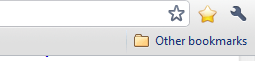
By default, the only bookmarks button on the Google Chrome toolbar is a small star at the end of address bar, which allows you to add a new bookmark or favorite. There are two methods for viewing and managing your existing bookmarks.
Each method only takes a few seconds to set up and is perfect for those who do not want to open the Google Chrome settings menu each time they want to view their bookmarks.

Each method only takes a few seconds to set up and is perfect for those who do not want to open the Google Chrome settings menu each time they want to view their bookmarks.
Keyboard Shortcuts
The easiest method uses two keyboard shortcuts. If you do not see a bookmarks bar under your address bar, press Ctrl + Shift + B to view your bookmarks bar.
Subscribe to:
Posts (Atom)