Paste Special Options
When you use paste special, you’ll be presented with a window of different options. To access the paste special window, first copy your desired cell or cells. This can be done by either highlighting the cell(s) and pressing Ctrl plus C or right clicking your selection and choosing Copy.
Select the destination cell. If you’re pasting multiple cells, select the starting cell. Right click the destination cell and choose Paste Special.
Showing posts with label OpenOffice. Show all posts
Convert Text to Table in OpenOffice Writer
OpenOffice Writer is a word processing program that includes the ability to place tables into a document to help organize data and make information more easily accessible to a reader. Rather than try to create a table and add text into it, you can make Writer do the work for you by automatically converting text to a table.
OpenOffice Writer includes a helpful function that lets you automatically convert text directly into a table without having to create and edit the table manually. Using tabs, semicolons, paragraphs, or commas to create columns and new lines to create rows, Writer will automatically place your information in a table and offer you the choice to add headings and force each column to have equal widths.
Why Convert Text to Table in OpenOffice Writer?
Although many word processors such as Microsoft Word and OpenOffice Writer allow the user to create and edit tables in a document, it is no secret that doing so can be frustrating and inconvenient. It is often difficult to position and edit the table in a word processor to get it to look exactly as you want.OpenOffice Writer includes a helpful function that lets you automatically convert text directly into a table without having to create and edit the table manually. Using tabs, semicolons, paragraphs, or commas to create columns and new lines to create rows, Writer will automatically place your information in a table and offer you the choice to add headings and force each column to have equal widths.
Converting Text to Table in OpenOffice Writer
Suppose you have some text in a document like that pictured below. Notice that the information has a heading to show what each column contains and that the information is separated by tabs.Create WordArt With OpenOffice Writer FontWork
In OpenOffice Writer, this feature exists, but with a different name. FontWork works almost the exact same as WordArt, but if you’re used to Word, finding the option may be a little difficult at first.
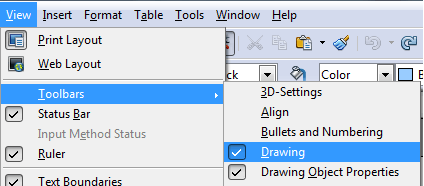
Customize OpenOffice/LibreOffice Toolbars to Save Space
OpenOffice (and LibreOffice, which is actually the program shown in the screenshots), is a powerful office suite, available for Mac, Windows and Linux. It comes with different applications, which help with a variety of tasks.
It comes with a word processor, spreadsheet, presentation creator, database, drawing program and equation editor. Each is its own separate program, although they each share a fairly similar interface.
And that interface can be a bit messy. Take, for example, Writer, the word processing program. Here is what the toolbars look like, by default:

It comes with a word processor, spreadsheet, presentation creator, database, drawing program and equation editor. Each is its own separate program, although they each share a fairly similar interface.
And that interface can be a bit messy. Take, for example, Writer, the word processing program. Here is what the toolbars look like, by default:
Subscribe to:
Posts (Atom)