Showing posts with label Windows XP. Show all posts

Add the Windows 8 Taskbar User Picture Tile to Windows 7

Microsoft is updating the Taskbar in the upcoming Windows 8 operating system to include a small user picture tile in the notification area of the Taskbar.
The user picture tile on the Taskbar in Windows 7
When you click the user picture tile, a popup menu displays which user is currently logged in and provides quick access to your user account settings directly from the Taskbar. We found a free tool, called Taskbar UserTile, that allows you to add the user picture tile with similar functionality to your Taskbar in Windows 7.

Easily and Quickly Optimize Windows XP Using a Free Tool


Are you still using Windows XP? Is it slowing down? We found a quick and easy way to optimize Windows XP using a tool called Quick XP Optimizer. It improves the performance of your system and applications and speeds up the boot up and shut down processes of Windows XP. This free tool speeds up the boot up and shut down of Windows, makes applications load quicker and run smoother, and speeds up browsing of your files and browsing on the internet. Quick XP Optimizer also allows you to easily clean up your hard drive and remove unnecessary files in Windows. And you don’t have to know anything about registry and system settings!

NOTE: Quick XP Optimizer is a safe program to run; we had no problems with it. However, it’s always a good idea to play it safe. We recommend you create a system restore point before optimizing your system with this tool.
Download Quick XP Optimizer from

How to Use XP Mode in Windows 7

7xpSo far, Windows 7 has proven itself to be a good overall operating system. It has brought several needed improvements, and even some new technological features.
However, Windows 7 can have some problems with backwards compatibility… which is to be expected with any new operating system. Microsoft anticipated this and decided to add XP Mode to Windows 7.
XP Mode allows you to run Windows XP inside a virtual machine within Windows 7. In turn, you will be able to run older applications and programs if need be. The following tutorial will guide you through adding XP mode to your Windows 7 installation.
Before you get started installing XP Mode, you should first check to see if your computer supports virtualization. Use this tool, directly from Microsoft, to check your computer’s compatibility.

Show File Extensions in Windows

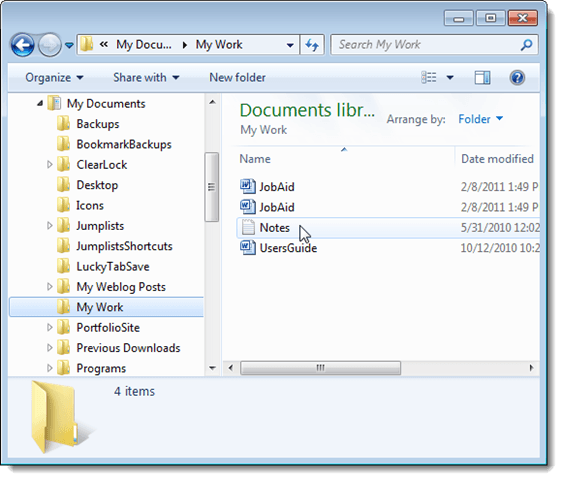
If you have just installed Windows on your computer, you may have noticed that you don’t see extensions on filenames. They are not visible by default. This post shows you how to show the extensions on filenames in Windows XP, Windows Vista, and Windows 7. This may seem like a simple task, but some of you may have forgotten where the setting is. You may be able to tell the type of file from the icon on the file, but it is not always obvious. For example, we have two copies of the JobAid file, but one is a Word 2003 (.doc) file and one is a Word 2007/2010 (.docx) file. By just looking at the files, you can’t easily tell the difference. However, you can easily show the file extensions to find out which file is which.

Filenames with no file extensions showing

Another Drop-Down Terminal Window for Ubuntu

We have previously written about a drop-down terminal window available for Ubuntu called Guake (see our post, Install a Drop-Down Terminal Window in Ubuntu). We found another drop-down terminal window for Ubuntu, called Tilda, that is easy to install and use.
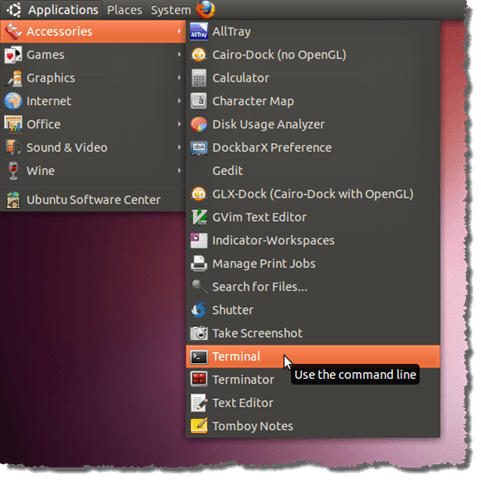
To install Tilda, open a Terminal window by selecting Accessories | Terminal from the Applications menu.

Opening a Terminal window

Automatically Unselect the File Extension While Renaming any File in Windows XP

Do you often rename files in Windows XP, without changing the file extensions? If so, you probably find it very annoying that the entire file name, including the extension, is automatically highlighted when you press F2 with the file selected in Windows Explorer.
If you have renamed files in Windows 7, you will have noticed that the filename is highlighted but the extension is not. This allows you to more quickly and easily change the filename or copy it.

We found a small, free, portable tool, called TheEnd, that allows you to do something similar in Windows XP. When TheEnd is running, the whole filename is unselected when renaming a file and the cursor is automatically placed at the end of the filename before the dot and the extension.
Download TheEnd from
http://www.donationcoder.com/Software/Skrommel/.
TheEnd does not need to be installed. Simply double-click the .exe file you downloaded.