Showing posts with label google. Show all posts

Shock News: Google Banned by All Co.Cc Domains

In order to fight spam more effectively google has banned all websites with co.cc domains.
People were abusing co.cc domains as they were free.
Google stated that most of the websites that were built using co.cc domains were spammy and they add no value to internet.
But some of the genuine bloggers also suffered due to this google crackdown.
Screen Shots:

Google Plus

Waiting for a Google Plus invite? Google is rolling out the service in waves and you can expect it to become a ubiquitous social option in the coming months. We have been playing with the service since getting invites yesterday and there are a lot of things to like about Google's new social initiative.
Unlike Google's last big invite-only rollout of a social initiative - Google Wave - users will not be confounded on just what the heck you are supposed to with the service when signing up for the first time. From Friendster, Friendfeed, MySpace and Facebook, users are familiar with how a social platform is theoretically supposed to look. At its core level, Plus is not that much different. Yet, there is so much more. How do you get started with Google Plus? Let's break down the nuts and bolts.
Site24x7, a website monitoring service which offers users to monitor their website from 25+ global locations. Site24x7 also monitors online multi-step web applications and transactions including various protocols such as HTTP(S), TCP, SMTP, POP, DNS and Mail Server, etc.
Site24x7 pricing starts at $1/Month/URL.
Sign up for a 15-day Free Trial!

Fix Problems with Google Toolbar in Internet Explorer 9

Disable Google ToolbarIf you’ve recently upgraded to Internet Explorer 9, you may experience problems with Google Toolbar. The toolbar may cause Internet Explorer to crash, or may be absent altogether.
This usually happens because certain versions of the Google Toolbar are incompatible with Internet Explorer 9. This problem is simple to solve, and only takes a few minutes. These steps will also solve compatibility problems between Google Toolbar and Internet Explorer 8.

Manage Twitter, Facebook, MSN, Yahoo, Google and AIM from one Web Page

Social media’s popularity continues to skyrocket, adding new ways to track and communicate with friends and colleagues every day. While the interactivity has improved our networking skills, checking several social media Web sites every day can greatly lessen our productivity—not to mention infringe on our free time.
LiveGo is a new service designed to help us keep up with the most popular social media accounts from one single Web site.
image
To start using LiveGo, select one of your favorite instant messaging or social networking services from the box on the right and enter your account information. You will need to Allow LiveGo to connect with most services.

Use An External Download Manager With Google Chrome

The first thing you’ll need to do is head to the Download Assistant page at the Google Webstore, where you can download and install the extension.
Download Assistant Web Page

Upload Photos from Picasa to Picasa Web Albums and Flickr

In the Picasa photo library, select the photos you wish to upload to Picasa Web Albums. Select the Upload button in the Photo Tray below the photo library window.
Picasa Upload Button

Opt-Out of Personalized Ads in Chrome

Google Ads seem to know everything about you: your age, the items for which you are searching, that you like a certain sports team or musical group, your medical problems. This can feel very creepy, even for those of us who understand exactly how the ads are generated.
Google is giving Chrome users a way to opt-out of these often-invasive advertisements, not just on their search engine, but in ads scattered throughout millions of Web sites. All that is required is a simple Chrome extension called Keep My Opt-Outs.
chrome
The extension downloads almost instantly from the Chrome Web Store. Click the Keep My Opt-Outs picture to download.
logo

Host your website on Google for free

There are quite a few advantages with hosting websites on Google App Engine. First, it should be more reliable since your site will get served through Google’s own data centers.
Second, if you have a low traffic website, it is highly likely that you won’t have to spend a penny for web hosting. You get 1 GB of free storage space for hosting your images, HTML web pages and other files and 1 GB of bandwidth per day. If you exceed that quota, you pay-per-use similar to Amazon S3.
Ready to jump?
With a regular web hosting company, you rend some storage space on their server, you then transfer your HTML and other files to that server using FTP or cPanel and your website is ready to serve. Google App Engine works in similar manner except that the file transfer mechanism is a bit different.
Step 1: Go to appengine.google.com and create a new application. If you have never used App Engine before, you might be asked to verify your mobile phone number before you can create a new app.
Step 2: Give your application a name – it should be unique and may only include lowercase alphabets and

Use Google Calendar and Contacts in Thunderbird

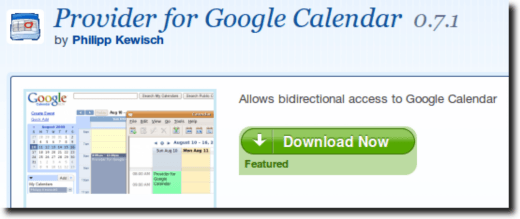
Provider for Google CalendarWe’ll assume for the moment that you already have Thunderbird downloaded, and working with Gmail.  We’ll also assume that you’ve downloaded the Lightning extension, and have it set up as your desktop calendar.  If not, you can download Thunderbird here and Lightning here.  Using Gmail in Thunderbird is pretty simple, but for detailed instructions, check out this page.

Add Bookmarks Toolbar Button to Google Chrome

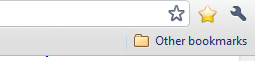
By default, the only bookmarks button on the Google Chrome toolbar is a small star at the end of address bar, which allows you to add a new bookmark or favorite. There are two methods for viewing and managing your existing bookmarks.
Each method only takes a few seconds to set up and is perfect for those who do not want to open the Google Chrome settings menu each time they want to view their bookmarks.

Keyboard Shortcuts

The easiest method uses two keyboard shortcuts. If you do not see a bookmarks bar under your address bar, press Ctrl + Shift + B to view your bookmarks bar.
Chrome Bookmarks Bar