Showing posts with label MS Office. Show all posts

How to Create Fillable Forms in Word 2010

Not many people know that Microsoft has given Word users a way to create fillable forms for several iterations. In 2010, it all happens under a normally hidden tab, called Developer.
So, to start, the first thing you need to do is make the Developer tab visible on your main ribbon; to do that, click on the File option, then move down and select Options
Options Menu Choice

Narrate PowerPoint Presentations with a Web Cam Video

PowerPoint presentations both bore and entertain students and business professionals throughout the world. As the Web has become more social, making these presentations accessible and effective for an online audience has proven challenging.
Narration is one way PowerPoint presentations become more effective in an online environment, but according to Present.me, if a narrator is not visible, only 65% of the presentation’s message is received. Present.me has created a solution for this problem.
present me
Instead of just adding narration to PowerPoint videos, Present.me splits the screen to show the presentation on the left side of the window, and the narrator on the right.

How to Create and Use Three-Dimensional Spreadsheets In Excel 2010

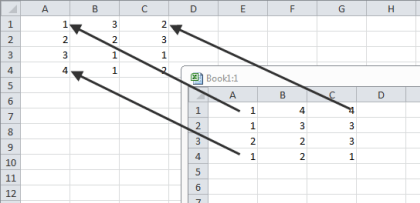
For the most part, most people think of a spreadsheet as a two dimensional object, because there are rows and columns, and that’s pretty much it; but spreadsheets can also be created that have a third dimension by using tabs, like this:
Initial Example

How to Use the Paragraph Features Section in Microsoft Word 2010

Many people that use Microsoft Word on a regular basis assume they know everything there is to know about formatting paragraphs, but there is one area, where many may not, and it all falls under the Paragraph section on the main ribbon in Word 2010:
Paragraph Section
Most people know about the bulleting and centering options on the left side of this section, so we’ll concentrate on those on the right; first up are the indenting icons
Indenting Icon

How to Use Live External Web Data in Excel 2010

Oftentimes, users of Excel find they’d like to be able to import data from an external source such as a web page, this is particularly true of web sites that list stock information. What many people don’t know is that Excel does have a facility for doing just this.
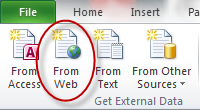
To see how it works, open Excel to a new blank document, then click somewhere in your sheet to make it your current document, then click on the Data tab on the main ribbon
From Web Icon

Recover Text from Corrupt MS Office Files

As if hard drive failures or virus attacks are not devastating enough on their own, these electronic catastrophes often corrupt valuable files, rendering them useless, and leaving us at the mercy of expensive software which might or might not recover data from the files.
If your lost files belong to the MS Office suite, your hopes of recovering your data without going into debt are significantly higher thanks to S2 Services Software’s Corrupt Office2Txt freeware.
image
Corrupt Office2Txt works for damaged or corrupt Office file types, including doc, docx, xls,, xlsx, ppt and pptx, as well as Open Office’s odt, ods and odp files. The information recovered is text only—you will need to reformat the document after recovery. But, this is still better than losing the information completely.
To start, click the download link on S2 Services’ Web site. The freeware downloads in a 10 MB zip file.
download link